Git Worktrees Explained: Why Your Code Accidentally Goes to Main (And How to Fix It)
⚡ TL;DR
- Git worktrees allow multiple folders for the same repo
- VS Code can mislead you about active branch context
- AI tools like Copilot CLI and Claude Code use worktrees automatically
- Most mistakes happen due to working in the wrong folder
- Always run
git statusbefore pushing
💥 What the hell are Git worktrees… and why did they push my code to main?
I was fixing a small bug.
Nothing critical. Just a quick patch.
I was using Claude Code (same thing happens with GitHub Copilot CLI).
Everything looked normal in Visual Studio Code.
- Branch looked correct
- Changes looked isolated
I pushed.
Then I checked GitHub…
…and my heart paused for a second.
The changes went straight to main.
🧠 Here’s the catch
I’ve always worked with a simple Git setup:
- One repo
- One working folder
- Switching branches when needed
But recently, AI tools started doing something new behind the scenes:
They use Git worktrees.
🔍 What I thought vs reality
What I thought:
“I’m on a bugfix branch”
What Git actually knew:
“You’re on main (in a different folder)”
That mismatch is the entire problem.
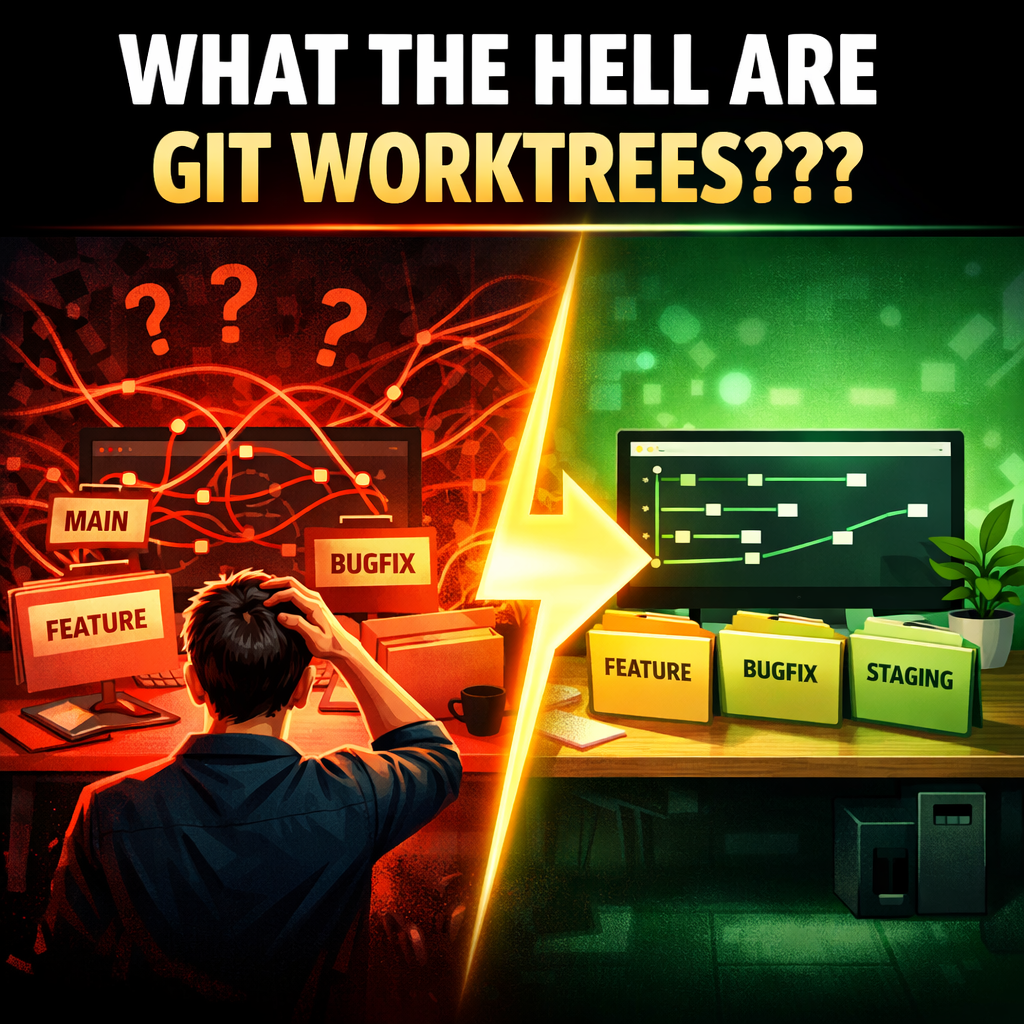
🧩 What Git worktree actually is (simple version)
Git worktree lets you:
- Open the same repo in multiple folders
- Each folder can be on a different branch
So now:
- Folder A → feature work
- Folder B → bugfix
- Folder C → staging
No switching required.
Sounds great.
Until you lose track of where you are.
⚠️ The hidden trap (VS Code + worktrees)
Visual Studio Code makes this confusing.
- It shows the active branch
- But doesn’t clearly show which worktree (folder) you're in
So you feel safe.
But Git doesn’t care about the UI.
Git only cares about your current directory.
💥 Why your code got pushed to main
This usually happens due to one of these:
- You were in the wrong folder (wrong worktree)
- Your branch was actually
main - Your branch was tracking
origin/main - VS Code showed misleading branch state
🔒 The one rule that fixes everything
Before every push, run:
git statusIf it doesn’t show your expected branch:
Stop. Don’t push.
(Optional but powerful)
pwd
git branch -vv
You’re verifying:
- correct folder
- correct branch
- correct upstream
🤖 Why this is happening more often now
Tools like:
- Claude Code
- GitHub Copilot CLI
automatically create worktrees to:
- run tasks in parallel
- avoid breaking your current work
This is intentional.
But your editor UI hasn’t fully adapted.
🧯 Already pushed to main? Here’s what to do
Please run following commands only if you really know what they really does, otherwise I would recommend reach out to colleague for help, who understand these commands:
Option 1 (safe)
git revert <commit-hash>Creates a new commit that undoes the change.
Option 2 (advanced, use carefully)
git reset --hard HEAD~1
git push --force
⚠️ Only if:
- you understand history rewriting
- you’re not breaking teammates
🚦 Quick safety guide
Most Git mistakes don’t happen because commands are complex.
They happen because you run the right command in the wrong context.
Use this as a quick mental model before executing anything:
🟢 Safe
git status
git branch -vv
pwd
🟡 Be careful
git push
git checkout
git worktree add
🔴 Dangerous
git reset --hard
git clean -fd
git worktree remove
🧠 The real problem isn’t Git
Git didn’t fail.
VS Code didn’t fail.
Your workflow changed…
…but your mental model didn’t.
You were working in a parallel system
while thinking in a single-folder system
⚡ Final takeaway
Worktrees don’t break your workflow.
They expose that your workflow wasn’t built for parallel work.
Fix the model, and Git becomes predictable again.
